Components / Conversation and media
Image viewer and cropper
A picture you can zoom and pan, and a crop tool with a frame you drag.
Functions: cui_cropper, cui_image_viewer
Usage
static cui_image_view view;                /* zeroed: fit; keep it to keep the zoom and position */
static cui_rect crop;                      /* image pixels; zeroed: the largest centered square */

cui_image_viewer(ui, "photo", tex, img_w, img_h, &view, .height = CUI_PX(420));
if (cui_cropper(ui, "avatar", tex, img_w, img_h, &crop, .round = true)) preview_crop(crop);
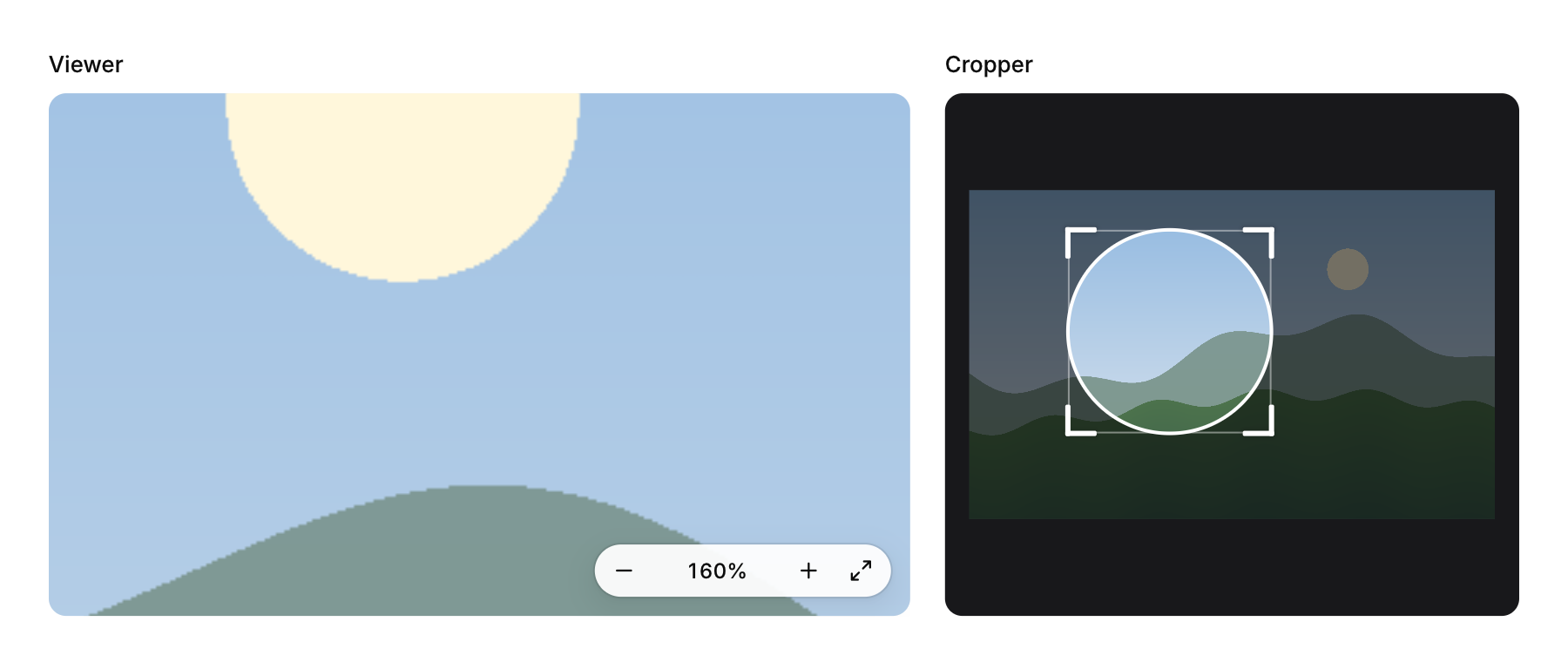
The viewer shows a picture fitted to its box and lets you look closer. The wheel, or a pinch (which arrives as Ctrl+wheel), zooms around the pointer, so the spot you aim at stays under it; dragging pans; double-click switches between fitting the view and actual pixels at the pointer. With the viewer focused, + and - zoom, 0 fits, 1 shows actual pixels and the arrows pan. Zoom and position ease to where they are going and the image never slides out of the view: smaller than the box it stays centered, larger it keeps its edges outside. A pill in the corner has zoom out, the percentage, zoom in and fit (no_toolbar hides it), checkerboard puts a grid behind transparent pictures and max_zoom caps the zoom (16 by default). The view is yours: zoom is screen points per image pixel (0 means fit) and cx, cy the image point in the middle, so you can save it or set it.
The cropper puts a crop rectangle over the fitted picture, in image pixels. Drag inside it to move it, drag a corner or an edge to resize it, or drag outside to draw a new one; the outside dims, thirds lines and the size show while you drag, and the crop stays inside the image and no smaller than min_size (16 by default). aspect keeps a width to height ratio (an edge then resizes around the middle and a corner follows the larger change), round draws a round mask for avatars and keeps a square. With the cropper focused the arrows move the crop by a pixel, or ten with Shift. Both draw the picture with a single quad cut to what is in view, so a deep zoom into a large image costs no more than a fitted one.
Keyboard
- The wheel, or a pinch (which arrives as Ctrl+wheel), zooms around the pointer, so the spot you aim at stays under it; dragging pans; double-click switches between fitting the view and actual pixels at the pointer.
- With the viewer focused, + and - zoom, 0 fits, 1 shows actual pixels and the arrows pan.
- With the cropper focused the arrows move the crop by a pixel, or ten with Shift.
Options of cui_cropper
| Option | Type | Default | Description |
|---|---|---|---|
.width | cui_size | the width it gets and 360 | default the width it gets and 360 |
.height | cui_size | the width it gets and 360 | default the width it gets and 360 |
.aspect | float | width / height to keep, 0 for free | |
.round | bool | a round mask, for avatars (keeps a 1:1 aspect) | |
.min_size | float | 16 | smallest side, image pixels; default 16 |
Options of cui_image_viewer
| Option | Type | Default | Description |
|---|---|---|---|
.width | cui_size | the width it gets and 360 | default the width it gets and 360 |
.height | cui_size | the width it gets and 360 | default the width it gets and 360 |
.max_zoom | float | 16 (1600%) | default 16 (1600%) |
.no_toolbar | bool | the zoom buttons and percentage in the corner | |
.checkerboard | bool | a grid behind transparent images |
cui_image_view
| Field | Type | Description |
|---|---|---|
zoom | float | screen points per image pixel; 0 fits the image in the view |
cx | float | the image point at the middle of the view, in pixels |
cy | float | the image point at the middle of the view, in pixels |
Related
- Image compare and card stack: A divider that reveals one picture over another, and a stack of cards the user swipes through.
- Carousel: A strip of slides the user drags or steps through, one at a time.
- Presence, counter and ticker: Small live pieces: who is here now, a number that rolls when it changes, and a line of text that scrolls past.
- Comments: A comment with its author, time, replies indented under it and a like button.