Guide
Tutorial: build a to-do app
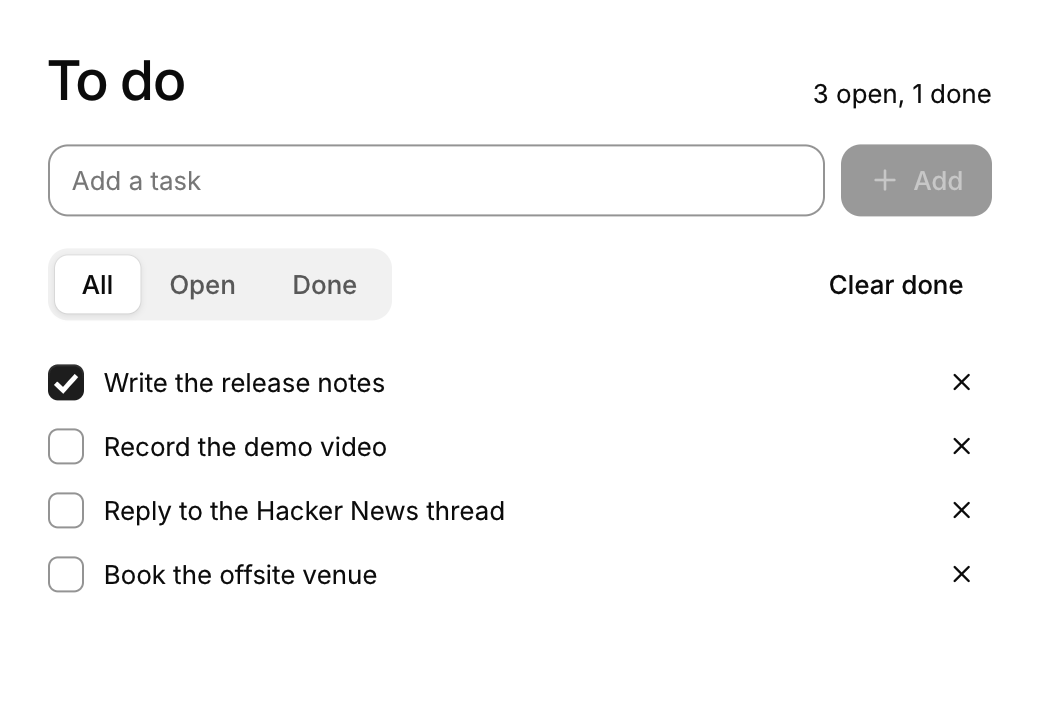
Getting started opened a window. This tutorial builds a small, complete app in it: a to-do list you can add to, tick off, filter and clear, which saves itself to a file. It takes about a quarter of an hour, and the result is about 130 lines of C.
Along the way it covers what most apps need: your own data as the state, a list that grows, ids for repeated rows, a dialog, and saving. The finished program is examples/todo.c. CUI's tests build it, type into it and check that it does what this page says, and it runs in your browser among the apps on the site.
A window and a frame function
Start from the project of Getting started: a CMakeLists.txt that links cui::cui, and a main.c.
#include <cui/cui.h>
#include <cui/cui_app.h>
#include <stdio.h>
#include <string.h>

typedef struct {
    int nothing_yet;
} app_state;

static void frame(cui_ctx *ui, void *user) {
    app_state *a = user;
    (void)a;
    cui_column(ui, .pad = 24, .gap = 16) {
        cui_heading(ui, "To do", 2);
    }
}

int main(void) {
    static app_state a;
    return cui_app_run(&(cui_app_desc){ .title = "To do", .width = 520, .height = 640 }, frame, &a);
}
cui_app_run opens the window and calls frame whenever the screen needs drawing: after input, during an animation, and not at all while nothing happens. frame describes the whole screen each time. There are no widgets to create and keep; what stays between frames is your app_state.
Your data is the state
The app is a list of tasks, so that is what the state holds. Plain arrays are fine:
#define MAX_TASKS 200

typedef struct { char title[96]; bool done; } task;

typedef struct {
    task tasks[MAX_TASKS];
    int count;
    char draft[96];        /* what is being typed into the field */
    int filter;            /* 0 all, 1 open, 2 done */
    bool confirm_clear;    /* the dialog is open */
    char path[512];        /* the file the list is saved in */
} app_state;
Everything the screen shows comes from this struct. To show a count, count:
int done = 0;
for (int i = 0; i < a->count; i++) done += a->tasks[i].done;

cui_row(ui, .gap = 12, .align = CUI_ALIGN_END) {
    cui_heading(ui, "To do", 2);
    cui_spacer(ui);
    cui_textf(ui, "%d open, %d done", a->count - done, done);
}
There is nothing to update when a task changes. The next frame reads the array again and draws what it finds.
Add a task: a field and a button
A component is a function call that returns what happened this frame. A text field edits your buffer and says whether Enter was pressed; a button returns true on the frame it is clicked:
cui_row(ui, .gap = 8) {
    int typed = cui_input(ui, "new-task", a->draft, sizeof a->draft, .placeholder = "Add a task", .width = CUI_FILL);
    bool add = cui_button(ui, "Add", .variant = CUI_BUTTON_PRIMARY, .icon = CUI_ICON_PLUS, .disabled = !a->draft[0]);
    if ((typed & CUI_SUBMITTED) || add) changed |= add_task(a);
}
add_task is ordinary C: it copies the draft into the next free task and empties the draft, which empties the field, because the field shows your buffer.
static bool add_task(app_state *a) {
    if (!a->draft[0] || a->count >= MAX_TASKS) return false;
    task *t = &a->tasks[a->count++];
    snprintf(t->title, sizeof t->title, "%s", a->draft);
    t->done = false;
    a->draft[0] = 0;
    return true;
}
The options after the required arguments (.placeholder, .variant, .disabled) are named arguments. Leave any out and it takes its default.
A list that grows: give each row an id
Draw the tasks with a loop. Each one is a checkbox bound to its done flag, and a delete button:
int remove = -1;
cui_scroll(ui, .id = "tasks", .width = CUI_FILL, .height = CUI_FILL, .gap = 2) {
    for (int i = 0; i < a->count; i++) {
        task *t = &a->tasks[i];
        cui_push_id_int(ui, i);
        cui_row(ui, .gap = 8, .align = CUI_ALIGN_CENTER, .width = CUI_FILL) {
            if (cui_checkbox(ui, t->title, &t->done)) changed = true;
            cui_spacer(ui);
            if (cui_icon_button(ui, CUI_ICON_X, .tooltip = "Delete", .variant = CUI_BUTTON_GHOST, .size = CUI_SIZE_SM)) remove = i;
        }
        cui_pop_id(ui);
    }
}
if (remove >= 0) {
    memmove(&a->tasks[remove], &a->tasks[remove + 1], sizeof(task) * (size_t)(a->count - remove - 1));
    a->count--;
    changed = true;
}
Two things here are worth knowing in every CUI app.
Ids. CUI keeps a little state per component (a hover fade, a checkbox's animation), and finds it by an id made from the label. Two tasks called "Buy milk" would share one, and so would every row's delete button. cui_push_id_int(ui, i) and cui_pop_id wrap each row in its own scope, so every row is distinct. Use an id scope around anything you draw in a loop.
Change the array after the loop. The delete button only notes which row was clicked. Removing the task right there would shift the tasks under the loop that is still drawing them.
cui_scroll gives the list its own scrolling once it is taller than the window, and .height = CUI_FILL hands it the space that is left.
A filter, and something to show when the list is empty
A segmented control writes the index of its selection into an int:
static const char *filters[] = { "All", "Open", "Done" };
cui_segmented(ui, "filter", filters, 3, &a->filter);
Filtering is an if in the loop, and an empty result is a good place for an empty state:
if ((a->filter == 1 && t->done) || (a->filter == 2 && !t->done)) continue;
shown++;
if (!shown)
cui_empty_state(ui, a->count ? "Nothing here" : "No tasks yet", .icon = CUI_ICON_LIST_CHECKS,
.description = a->count ? "No task matches this filter." : "Type one above and press Enter.");This is how conditional interface works in immediate mode: you do not show and hide things, you call the function or you do not.
Ask first: a dialog
Clearing the finished tasks destroys data, so ask. A dialog is shown while a bool of yours is true, and closing it (the x, Esc, a click outside) sets the bool to false:
if (cui_button(ui, "Clear done", .variant = CUI_BUTTON_GHOST, .disabled = done == 0)) a->confirm_clear = true;cui_dialog(ui, "Clear finished tasks?", &a->confirm_clear, .description = "They are removed from the list and from the file.", .width = 380) {
cui_dialog_footer(ui) {
if (cui_button(ui, "Cancel")) a->confirm_clear = false;
if (cui_button(ui, "Clear", .variant = CUI_BUTTON_DANGER)) {
int kept = 0;
for (int i = 0; i < a->count; i++) if (!a->tasks[i].done) a->tasks[kept++] = a->tasks[i];
a->count = kept;
a->confirm_clear = false;
changed = true;
cui_toast(ui, "Finished tasks cleared");
}
}
}Put the dialog at the end of frame, outside the layout: it draws over everything and keeps Tab inside itself while it is open. cui_toast shows a short message in the corner.
Save and load
The state is your struct, so saving is writing it. One line per task is enough:
static void save(const app_state *a) {
    if (!a->path[0]) return;
    FILE *f = fopen(a->path, "w");
    if (!f) return;
    for (int i = 0; i < a->count; i++) fprintf(f, "%c %s\n", a->tasks[i].done ? 'x' : '-', a->tasks[i].title);
    fclose(f);
}
Every place that changed the list above set changed. At the end of the frame, save once:
if (changed) save(a);Loading happens before the window opens, in main:
int main(void) {
    static app_state a;
    snprintf(a.path, sizeof a.path, "todo.txt");   /* beside where the app is started */
    load(&a);
    return cui_app_run(&(cui_app_desc){ .title = "To do", .width = 520, .height = 640 }, frame, &a);
}
load is the mirror of save; see it in examples/todo.c.
Fit any window, and build it small
Wrap the content in a column with a maximum width, centered in the window, and the app reads well from a phone-sized window to a full screen:
cui_column(ui, .width = CUI_FILL, .height = CUI_FILL, .align = CUI_ALIGN_CENTER, .bg = CUI_COLOR_BACKGROUND) {
    cui_column(ui, .width = CUI_FILL, .max_width = 560, .height = CUI_FILL, .pad = 24, .gap = 16) {
        /* everything from the steps above */
    }
}
Build a release, with cui_app_target(my_app) in your CMakeLists.txt so that only the components you used are linked:
cmake -S . -B build -DCMAKE_BUILD_TYPE=MinSizeRel
cmake --build build
./build/my_app
The whole app, window, fonts and all, is about 270 KB on Linux.
Where next
- The keyboard already works: Tab moves through the field, the filter and the rows, Space ticks a task, and Esc closes the dialog. Getting started shows how to add your own shortcuts.
- Layout explains rows, columns, sizes and grids. Theming switches to dark mode and changes the accent in one call each.
- Components and More components list everything else you can call, each with a live example on the site.
- The example apps are larger programs built the same way: a mail client, notes, a tracker, a music player.